Saved schedules and your main schedule
Keep several schedules for a term and choose the one that counts.
What is the main schedule?
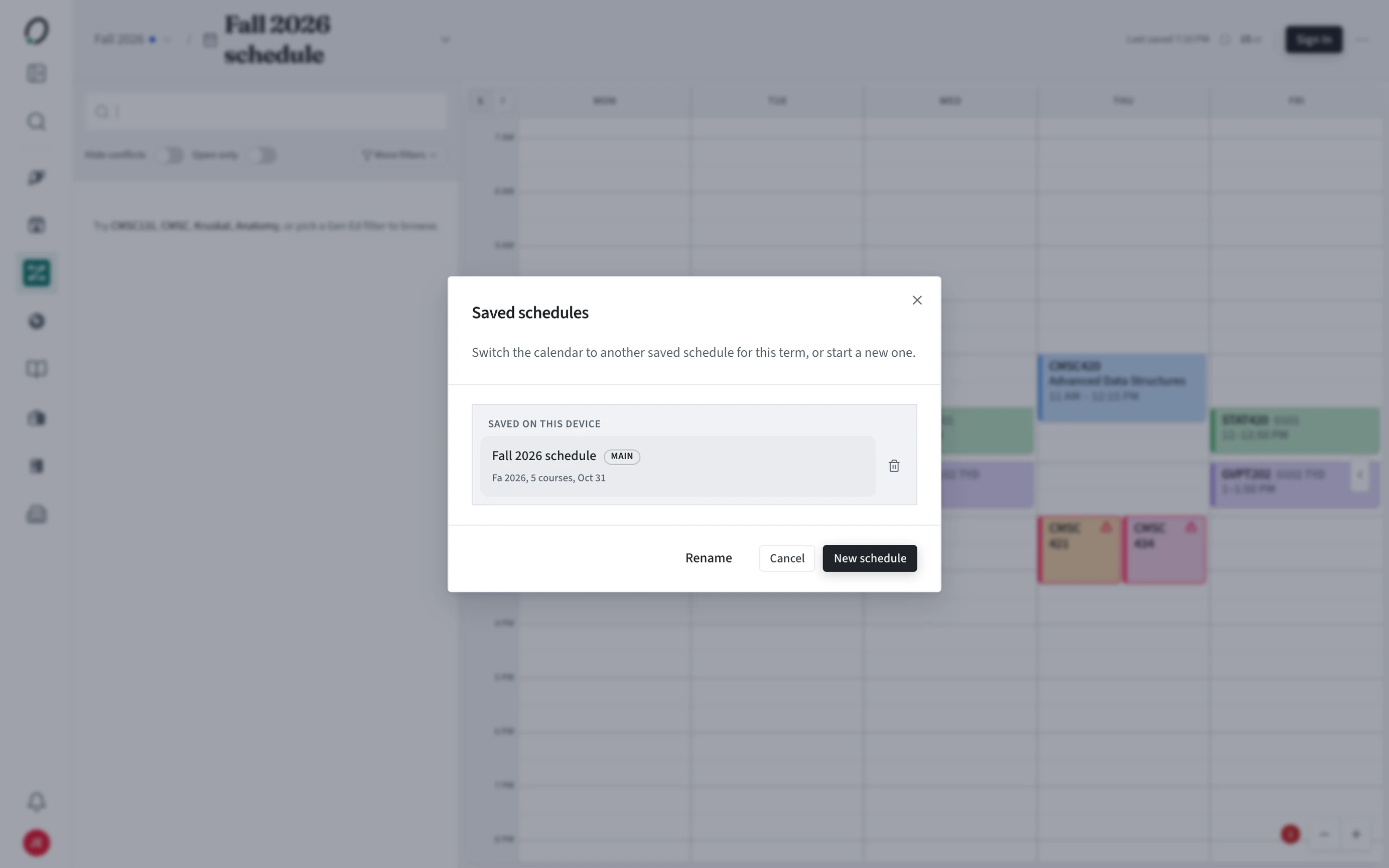
Each term has one main schedule, marked MAIN. Its courses are the ones Plan, Requirements, Overview, and My Calendar use for that term. Other saved schedules are drafts you can compare without changing anything else.
How do I switch schedules or start a new one?
Choose the schedule name at the top of the builder to open Saved schedules. From there you can switch to another schedule for the term, rename one, or start a new one.
- Open the schedule builder for the term.
- Choose the schedule name in the top bar.
- Pick a saved schedule to switch to it, or choose New schedule.
- Choose the star on a draft to make it the main schedule for the term.
Can I keep several drafts for one term?
Yes. Save as many as you like. Only the main schedule feeds your plan and requirements. In Settings > Privacy & sharing, Store schedule history decides whether drafts are kept beyond the main one.
Can I change the main schedule from the Plan page?
Yes. On a term in Plan, open the schedule menu, pick a saved schedule to preview it, and choose Make this my main schedule.