The Plan page
This term's week up top, then every term to graduation, year by year.
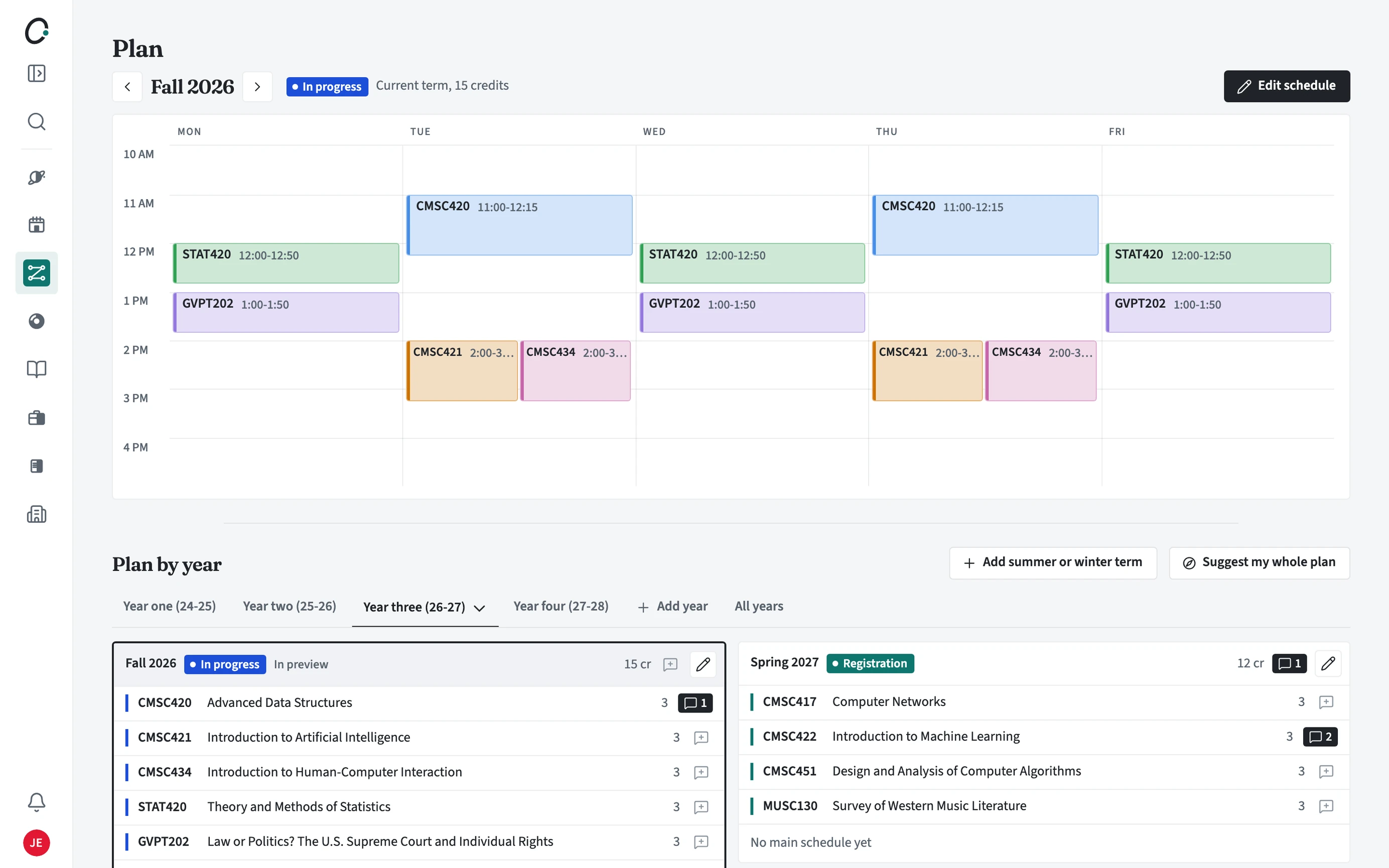
What is on the Plan page?
The top shows the current term: its status, credits, and the week from your main schedule, with Edit schedule to open it in the schedule builder. Below it, Plan by year lists every term's courses, grouped by year.
How do I plan a term?
Each term in Plan by year has its own list of courses and credits. Add courses there, then build that term's schedule when sections are posted.
- Open Plan from the sidebar.
- Pick a year tab, or All years to see every term at once.
- Add courses to a term, or open a slot to choose a course that fills a requirement.
- Use Add summer or winter term for a short term, and Add year if you need more time.
- When a term shows No main schedule yet, build its schedule to pick sections.
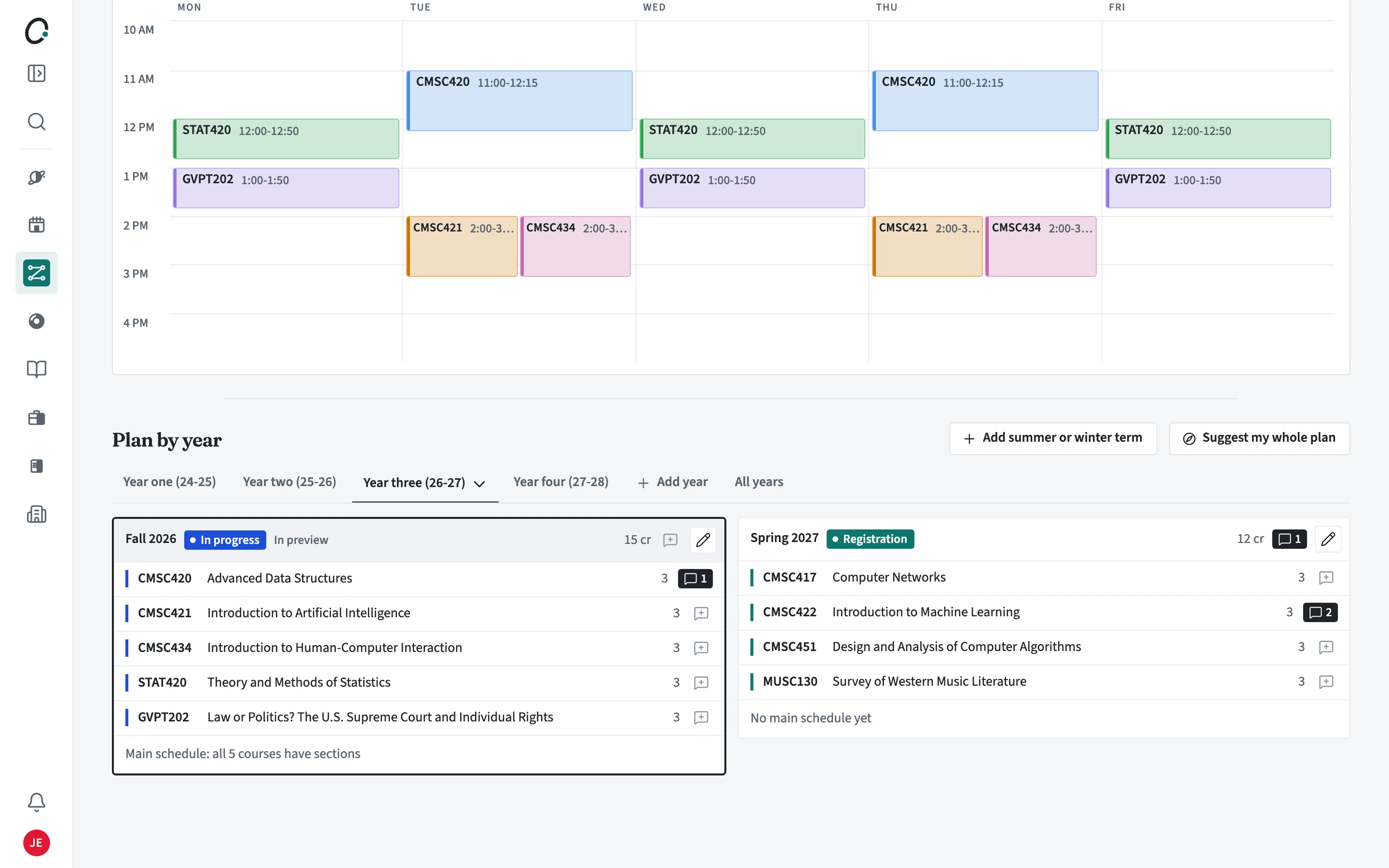
What do the term colors mean?
Green is a completed term, blue is the term in progress, teal is a term with its schedule posted or registration open, and gold is a planned future term. Courses take their term's color.