Find your way around Orbit
What each page in the sidebar is for, starting with Overview.
What does Overview show?
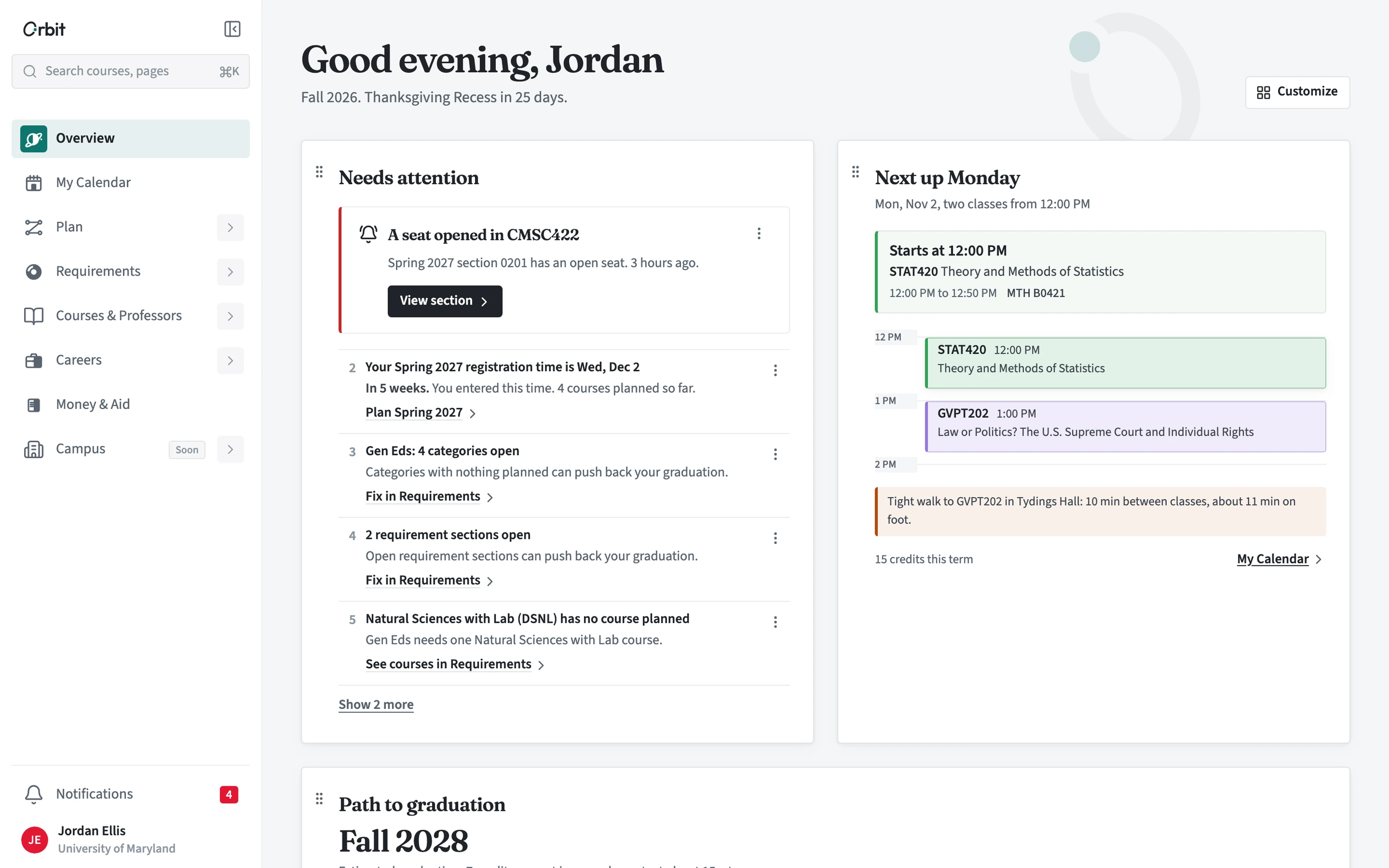
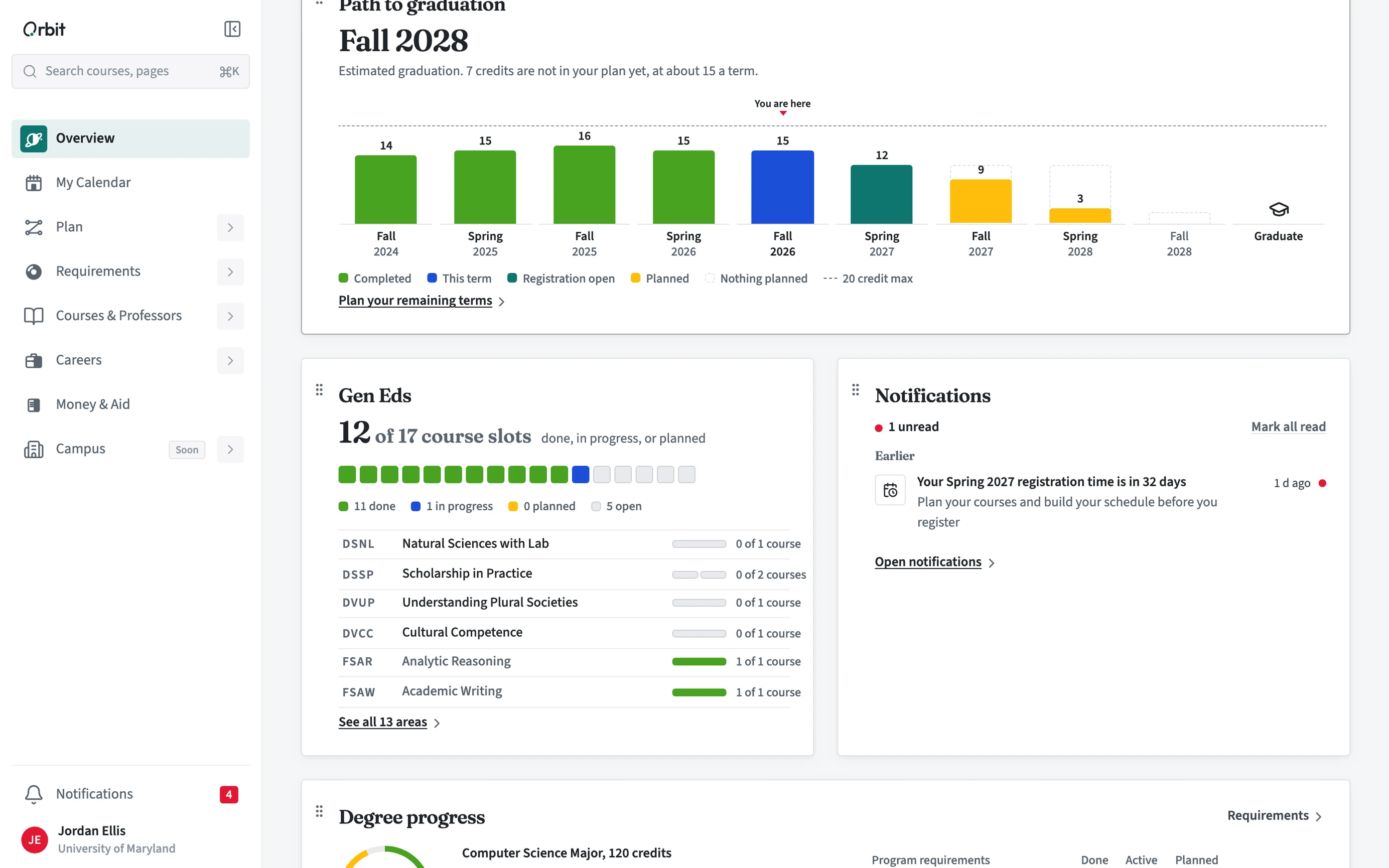
Overview is the first page after you sign in. It lists what needs attention (an open seat, your registration time, requirements with nothing planned), your next classes, your path to graduation term by term, and your progress on requirements. Each block links to the page that holds the detail.
- Open Overview from the top of the sidebar.
- Work down Needs attention. Each item has a button that opens the right page.
- Check the class card (Today, or Next up once the day is over) for your next class and any tight walk between buildings.
- Use Path to graduation to see how many credits each term carries and your estimated graduation term.
- Use Customize to choose which blocks show.
Which page do I use for what?
My Calendar is your real week, including classes and other events. Plan lays out every term to graduation. Requirements shows what your programs still need. Under Plan, Schedules is the builder where you pick sections for one term, and Generate schedules lists every schedule that fits a set of courses. Courses & Professors is for looking things up, and Careers connects your plan to where you want to end up.
Where are Notifications, Help, and Settings?
Notifications sits at the bottom of the sidebar and opens your Inbox. Help and Settings are in the account menu under your name. If you prefer menus across the top instead of the sidebar, switch Layout preference in Settings > Profile.